Backup files are created regularly on a dedicated laptop to provide access to the most recent patient data when needed. When you have a moment, please review the attached PCC FAQ for reference.
Backup Schedule & Retention
Backups are generated every hour
The eight most recent backups are retained in the designated folder
Older backups are automatically removed to manage storage
Accessing EMAR Data During a Network Outage
If there is a network outage, the most recent patient data can be accessed using the EMAR backup laptop:
Log in to the EMAR backup laptop
Password:
Facility1!
Open the “EMAR Backup” folder
Locate and extract the most recent ZIP file
Screenshot: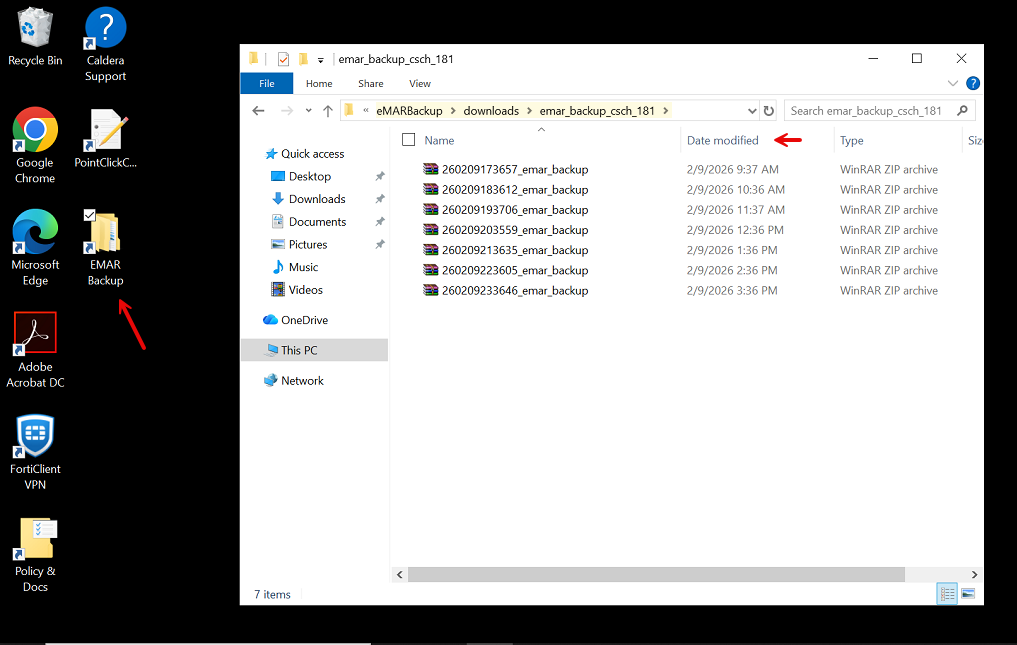
This will provide access to the latest available backup data.
Backup Laptop Requirements
To ensure backups continue running properly:
The laptop should remain powered on at all times
It must stay connected to a power source
The laptop lid does not need to remain open
Was this article helpful?
That’s Great!
Thank you for your feedback
Sorry! We couldn't be helpful
Thank you for your feedback
Feedback sent
We appreciate your effort and will try to fix the article