Your Employee ID and assigned Clock Number are now available directly on your Empeon Home Dashboard — giving you quick, reliable access whenever you need to reference your information.
Table of Contents:
Overview of Update
The Empeon Employee Dashboard — available via both desktop and mobile app — has been enhanced to display the following information directly beneath your name:
- Employee ID
- Clock Number
Screenshot:
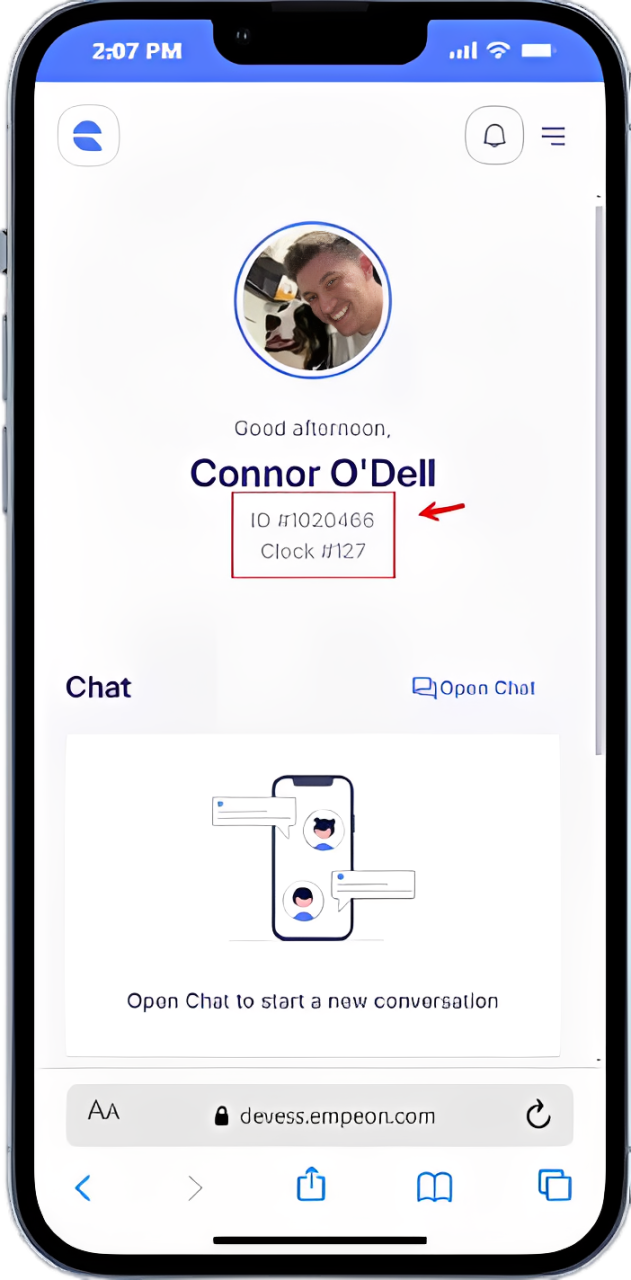
This enhancement makes confirming your login details fast and straightforward.
Tip: Your Clock Number listed in Empeon is the same number used:- As your PointClickCare username
- When clocking in and out each day
Where to Find Your Employee ID & Clock Number
Need Help?
If you experience any login issues, please submit a ticket through the Caldera Support Portal for assistance.
Screenshot:
This enhancement makes confirming your login details fast and straightforward.
- As your PointClickCare username
- When clocking in and out each day
Where to Find Your Employee ID & Clock Number
Need Help?
Was this article helpful?
That’s Great!
Thank you for your feedback
Sorry! We couldn't be helpful
Thank you for your feedback
Feedback sent
We appreciate your effort and will try to fix the article