We’d love to see what’s happening at your facility!
Share photos from your events and activities so we can celebrate the amazing moments across our communities and feature your team on Caldera Care’s social media and in the CC newsletter.
Steps:
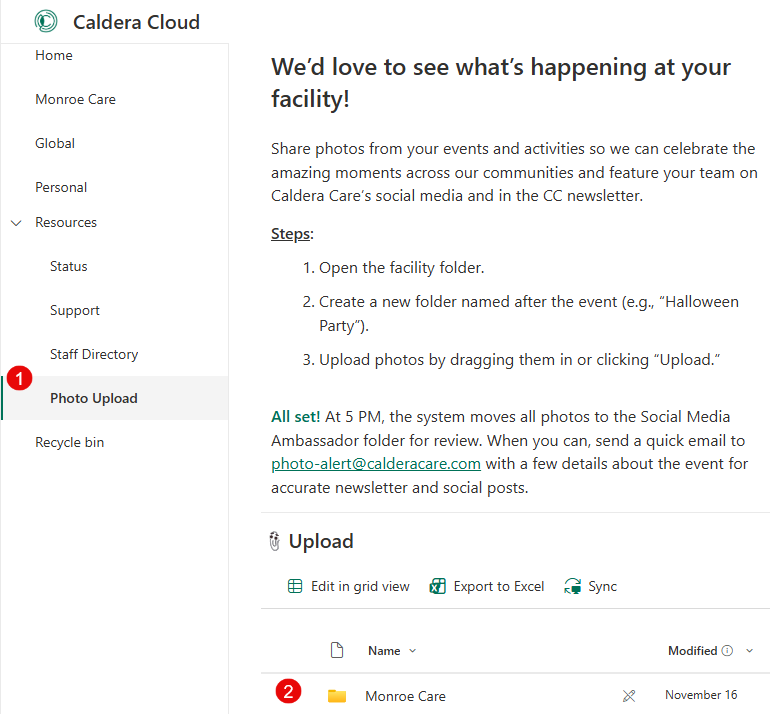
All set! At 5 PM, the system moves all photos to the Social Media Ambassador folder for review. When you can, send a quick email to photo-alert@calderacare.com with a few details about the event for accurate newsletter and social posts.
Video Guide
Was this article helpful?
That’s Great!
Thank you for your feedback
Sorry! We couldn't be helpful
Thank you for your feedback
Feedback sent
We appreciate your effort and will try to fix the article