This guide provides an overview of the Caldera Support Portal and the tools available. It covers how to submit support requests, use self-service resources, manage passwords, and navigate common workstation features like browsers, desktop shortcuts, backgrounds, and email signatures.
Table of Contents:
Caldera Support Portal
IT Requests
Purchasing Requests
Surveyor On-Site Notifications
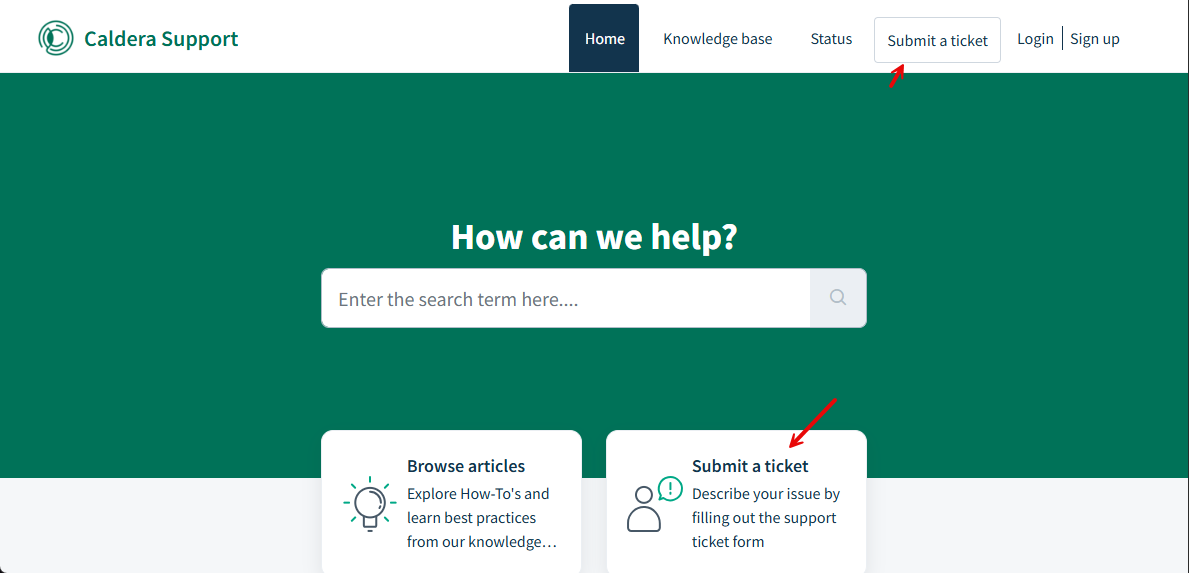
✅ How to Submit a Ticket:
Click “Submit a Ticket” on the portal.
Your request will be converted into a ticket, and you’ll receive a confirmation email with a tracking thread for follow-up.
Our support team will respond directly to assist you.
Knowledge Base & Resources
Access a growing collection of how-to guides and resources. We add new articles regularly to help staff find answers quickly.
Single Sign-On (SSO):
The portal uses Single Sign-On (SSO), so simply log in using your Caldera email credentials — no need to remember a new password.
Access the portal anytime at https://support.calderacare.com.
☁️ Navigating the Caldera Cloud: [Step-by-Step]
Self-Service Password Reset (PointClickCare)
Reset your own PointClickCare password—no more waiting on IT tickets.
Step-by-step guide: [Manage Profile, Reset Password]
Tip: Setting this up now ensures you won’t get locked out later.
Custom Browser
Homepage: Chrome or Edge browser open to the Caldera Cloud as the first tab.
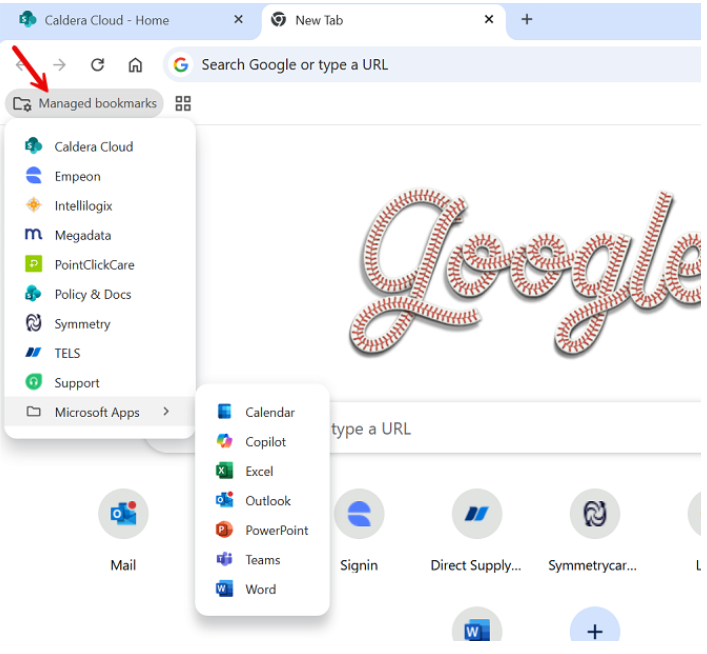
Managed Bookmarks: A “Managed Bookmark” folder has been added in Chrome and Edge with quick access to key links for daily use.
Screenshot:
Desktop Shortcuts
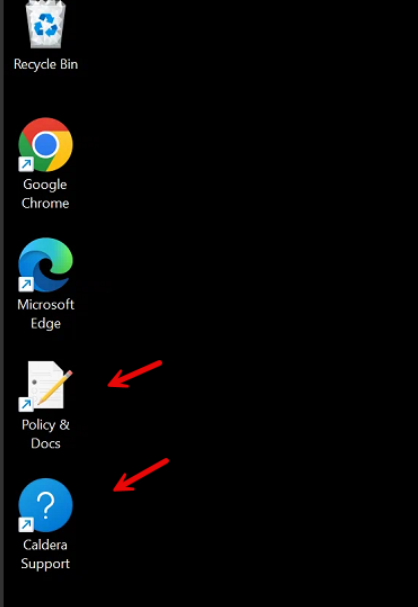
Caldera Support – quick access to IT support.
Policy & Docs – a public folder for Clinical policies and documentation.
For users without a company email, the folder will prompt for a password. Please reach out to IT to obtain the password.
Screenshot:
Desktop Background
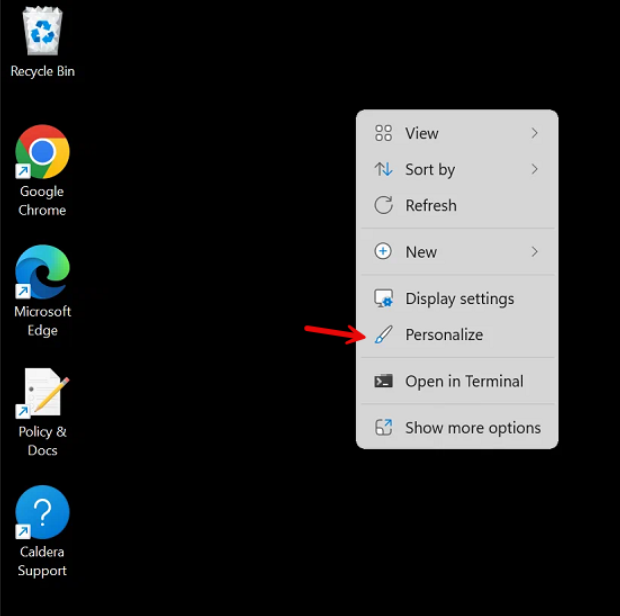
All PCs have a standardized background for better icon visibility. You can change it anytime by right-clicking on your desktop and selecting "Personalize".
Screenshot:
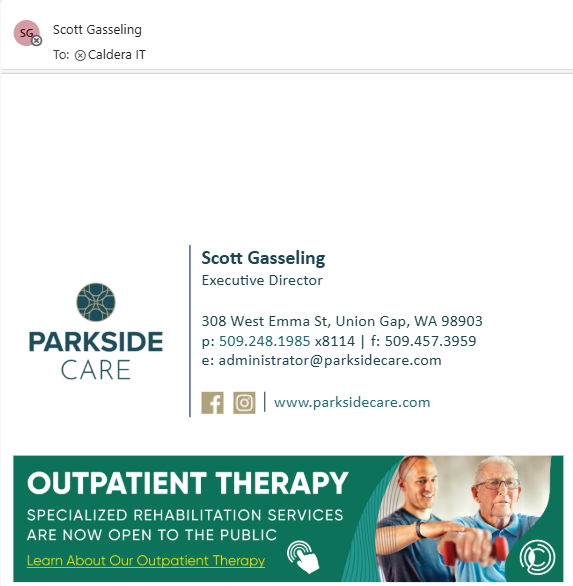
Email Signature
Each employee has a custom email signature that’s automatically added when emails are sent. It won’t show while you’re composing, but you’ll see it once the message is delivered. To preview it, send yourself an email and check the message.
Sample:
Support Portal – Tools & Articles
Newly added articles
(More coming soon!)
Access anytime: https://support.calderacare.com.
Tip: Sign in with your Caldera email to see all available resources.
Was this article helpful?
That’s Great!
Thank you for your feedback
Sorry! We couldn't be helpful
Thank you for your feedback
Feedback sent
We appreciate your effort and will try to fix the article